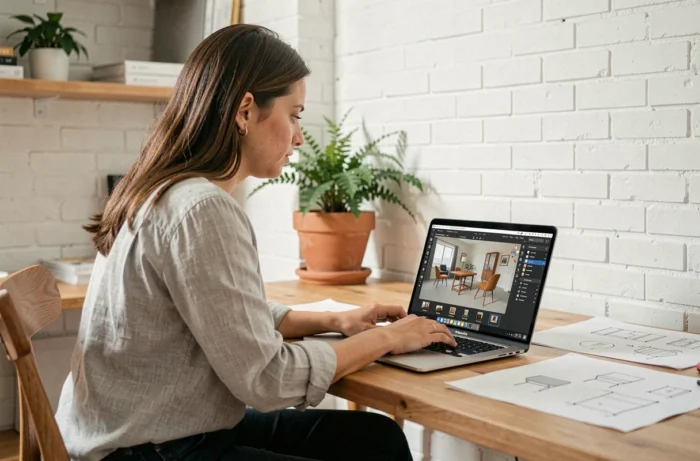
Importing a custom piece of furniture into HomeByMe requires having a 3D file in a format that the platform accepts. The promise is simple: drag and drop a model, wait a few minutes, and then integrate it into your interior design project. In practice, most average users do not possess these files, creating a gap between the import function and its actual use.
3D formats compatible with HomeByMe: what the platform really accepts
HomeByMe officially recommends the GLB and glTF formats for importing custom furniture. Other formats like OBJ or DAE are supported, but the platform indicates that they are not recommended for appropriate use.
This distinction has direct consequences on rendering. A GLB file includes geometry, textures, and materials in a single container. An OBJ file, on the other hand, separates the geometry from the material file (.mtl) and associated textures, which increases the risk of loss during upload.
| Format | Embedded Textures | Recommended by HomeByMe | Risk of Loss During Upload |
|---|---|---|---|
| GLB / glTF | Yes (single container) | Yes | Low |
| OBJ + MTL | No (separate files) | No | Moderate to High |
| DAE (Collada) | Variable | No | Moderate |
| FBX | Yes (depending on version) | Accepted | Variable |
In summary, prioritizing the GLB format reduces import errors. If the source model is in OBJ or FBX, a prior conversion to GLB using a tool like Blender or an online converter avoids most issues with missing textures.
Some tips on the Faire Construire website detail the steps to prepare and convert a file before sending it to the platform.
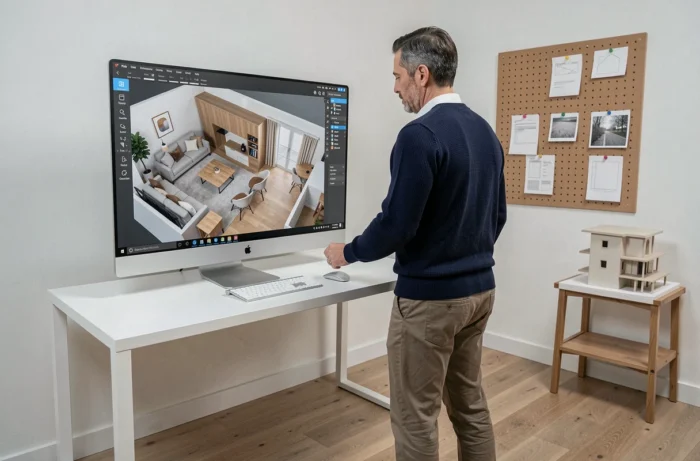
Where to find 3D furniture models compatible with HomeByMe software
HomeByMe directs its users to public libraries like CGTrader or Sketchfab. These platforms offer thousands of furniture models exportable in GLB, OBJ, or FBX. In recent years, the number of models available for free has significantly increased, expanding possibilities for interior projects.
Free or paid libraries: selection criteria
The choice of a library depends on three parameters: the export format offered, the usage license, and the level of detail of the model. A piece of furniture intended for realistic rendering in HD or 4K in HomeByMe must have sufficiently detailed textures.
- Sketchfab allows filtering by export format and offers a 3D preview before downloading, which avoids unpleasant surprises regarding proportions
- CGTrader lists both free and paid models, with a clear indication of the available format (GLB, FBX, OBJ)
- 3D generation tools using artificial intelligence (like Meshy or Sloyd) now allow creating a furniture model from a textual description, then exporting it in a compatible format
Most consumers do not have 3D files of their own furniture. Using a public library or an AI generator remains the shortest path to obtaining a usable model in a HomeByMe project.
Limitations of custom import in HomeByMe and workarounds
The drag-and-drop feature displayed by the platform masks several technical frictions that users discover afterward.
Dimension and scale issues
An imported model may appear tiny or gigantic in the plan. Modeling software does not all use the same default unit of measurement. Checking the scale of the model before import (in Blender, for example, by ensuring that dimensions are in meters) prevents having to redo the operation.
Missing or distorted textures
When an OBJ file is imported without its MTL file or without the associated texture images, the furniture appears as a solid gray in the project. The GLB format includes everything in a single file, which eliminates this issue. For users who receive an OBJ model from a craftsman or manufacturer, converting to GLB via a free tool remains the most reliable solution.
Private catalog and subscription
HomeByMe offers a private mode to keep imported models in a personal catalog, accessible only with the Unlimited+ subscription. Without this subscription, imported furniture remains usable in projects but does not benefit from dedicated storage space.
Generic HomeByMe furniture or 3D import: which approach for which use
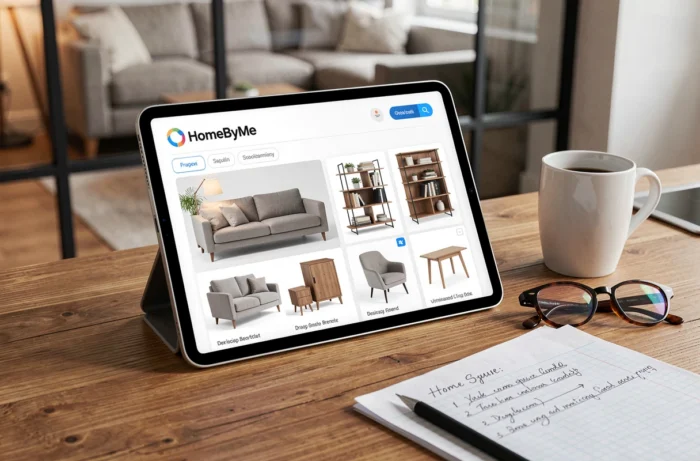
Before embarking on the import of an external file, it is essential to evaluate whether HomeByMe’s integrated catalog already meets the need. The platform has a library of customizable generic furniture: size, material, texture, and color can be modified directly in the tool.
Generic furniture is sufficient for the majority of design projects. 3D import is justified in two specific cases: reproducing an existing piece of furniture (a sofa already purchased, for example) or integrating a custom object that cannot be found in the brand catalog.
| Criterion | Generic HomeByMe Furniture | Custom 3D Import |
|---|---|---|
| Ease of use | Immediate, no conversion | Requires a compatible file |
| Customization | Size, color, texture | Total (shape, details) |
| Realistic rendering | Good, embedded textures | Depends on the quality of the source model |
| Access | Free (basic catalog) | Free or paid depending on the source of the file |
For an interior plan intended to visualize the overall layout, the furniture from the catalog represents the quickest choice. For a client project where fidelity to real furniture matters, importing a 3D model remains the only reliable option.
The main barrier to custom import in HomeByMe is not technical but practical: obtaining a usable 3D file requires either modeling it, finding it in a library, or generating it via an AI tool. Once this file is in hand, preferably in GLB format, the import itself takes just a few minutes.